Get started with MedMC
Practice makes perfect. MedMC is a platform that collects multiple-choice questions from past exams, allowing you to practice more and consolidate the knowledge you've learnt.
It contains two main components, the “Self-check test” and the “Database”.
Self-check test
This will be the place where you can learn and practice.
Select the question database
To start a self-check test, you are provided with two options: using our predefined database or your own database.

Use predefined database
Use the database we have prepared and start a self-check test with ease!
For simple use, you can go straight ahead for the first option without setting any database. You can check the database content here (I am so sorry for making the database so complicated) or the updates from the homepage.

Use your database
Upload your own database in .zip format and start the test!
For advanced use, you may also provide your database in zip format created from the “Database” function (to be discussed in the next section) to practice self-defined questions.
Select options to generate the test
After selecting the suitable option, follow the instructions to choose the questions you have to practice on.

Image for reference only
Conduct and review the test
Try your best to answer the questions, and press the "Submit" button below when you have finished the test.
After submission, you can check your score and the explanation for the questions.
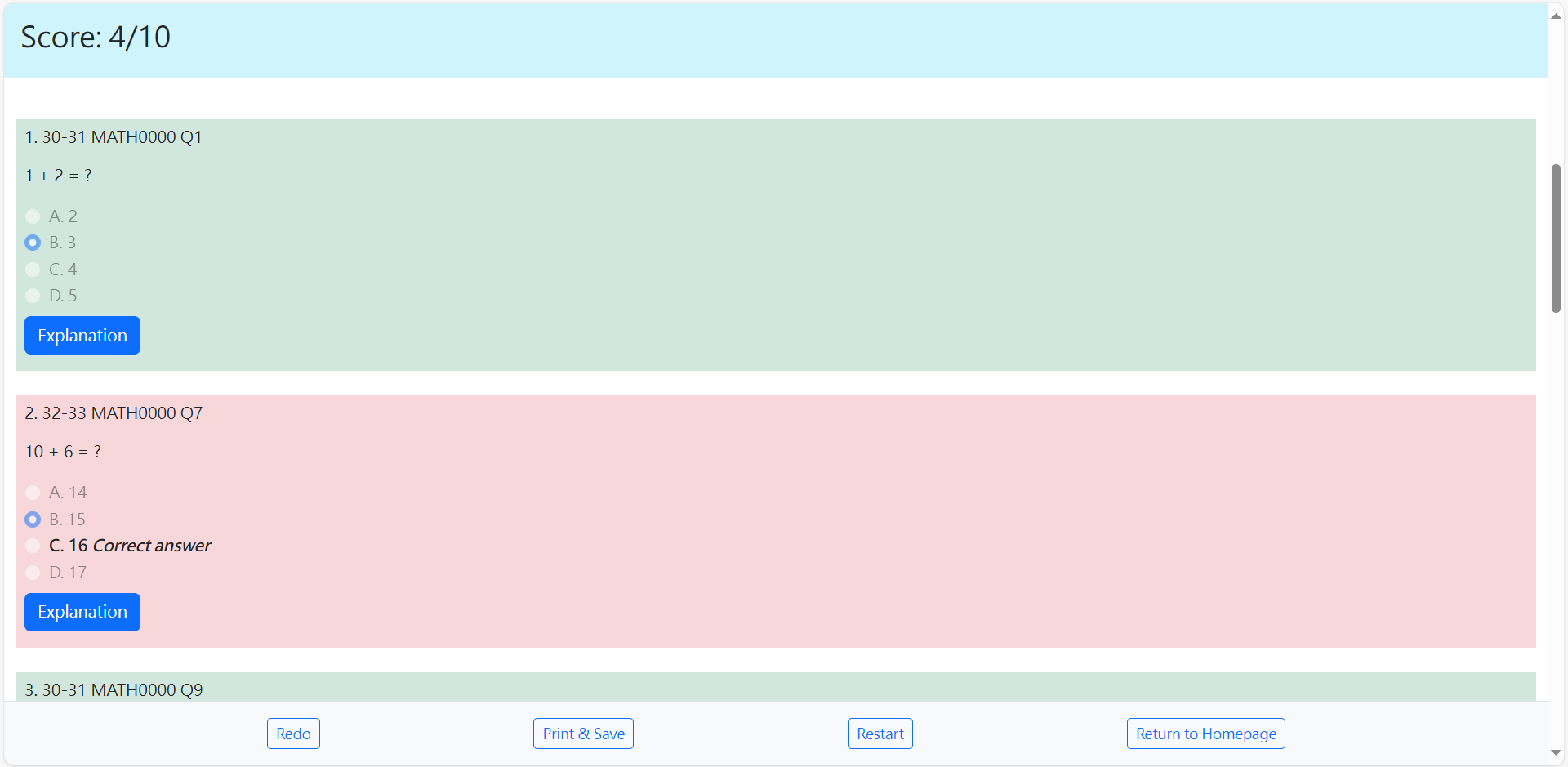
This is also for reference only
Due to the unfortunate fact that this website is a static one, we are not able to save the test for you to continue the test or review it later.
A “Print & Save” button is provided for you to save the test on your device whenever you have to stop the test, or you would like to save the test for revision.
Note that you cannot open the test again on the website!
If you would like to redo the test on the same set of questions, you may click the “Redo” button. Otherwise, press the “Restart” button to restart a test.
Database
As for the “Database” component, this will be the place for you to create, update, and edit the database.
(This function is for advanced use only. You may skip this part if you are only using the self-check test function.)
Select the question database
Similarly, you will have to choose from 3 options:
- Starting from the current database (i.e. the predefined database here)
- Creating a new database
- Importing from local drive
Edit the question database
Entering the interface for editing the database, you will see the following:
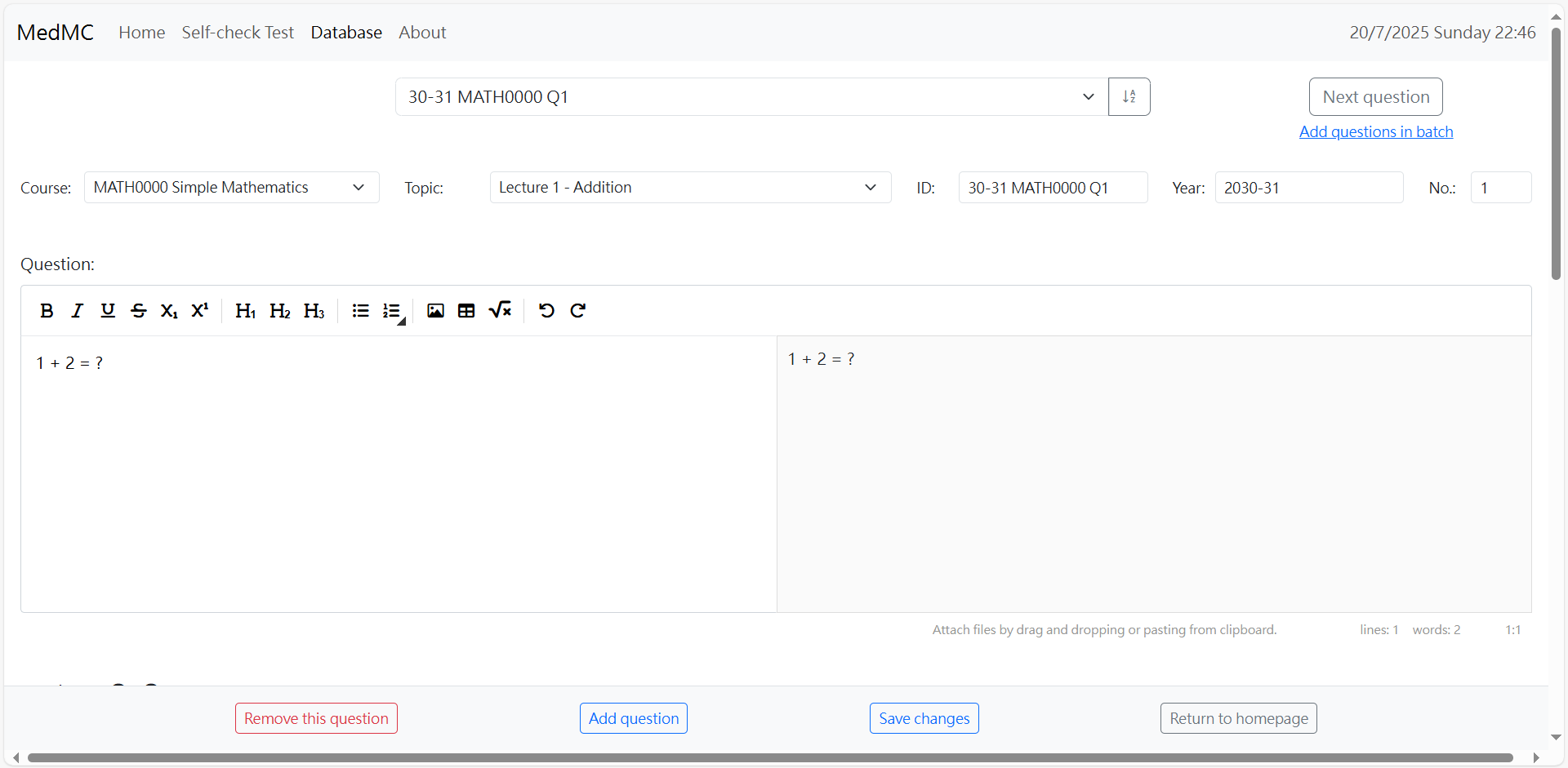
Set the information of the question
For the first row, you can choose the question to edit or add questions by clicking on the buttons or selecting from the drop-down list.
Check and update the information about the question in the second row. This is important for the program to select questions according to the user’s needs when generating the self-check test!
To add a new course or a new topic for the course, you can choose the “Add course …” or “Add topic …” option from the corresponding drop-down list.
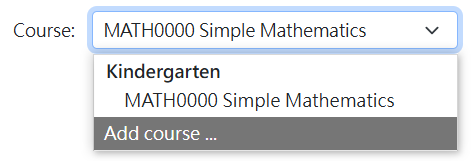
Also, make sure that each question has a unique ID for the program to read the database correctly.
Set the content of the question
There are a couple of large boxes below for editing the content of the question, including the question itself, the options, and the explanation.
The editors require input in Markdown language from one side, and translate it into styled text on the other side.
Check the full guide for the Markdown editor here to discover the different functions of the editor and the Markdown syntax.
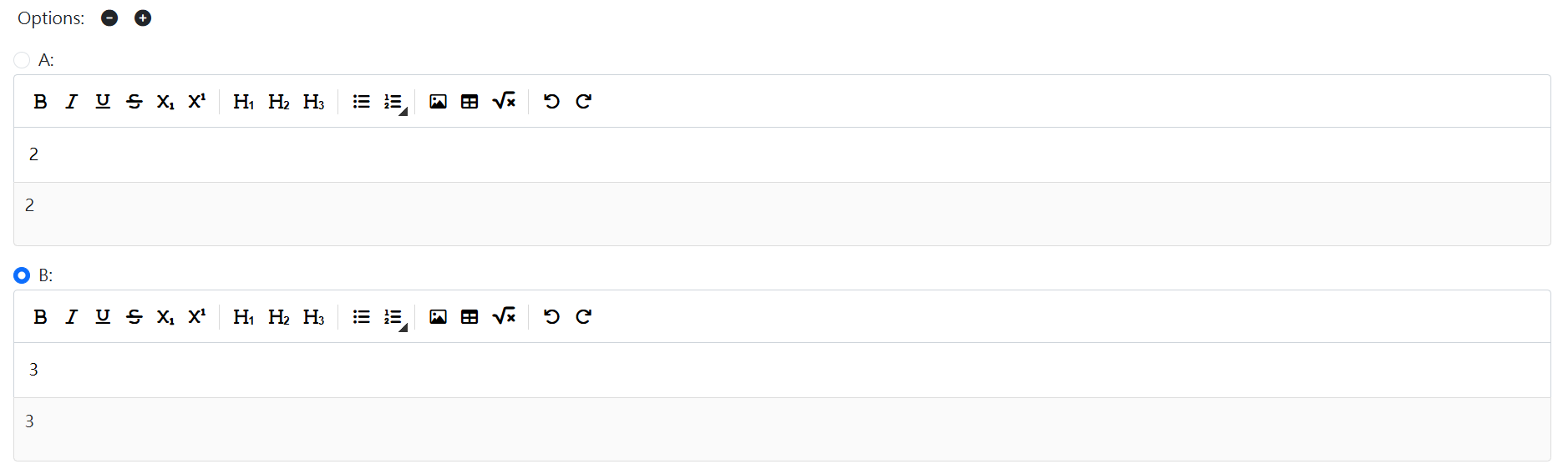
For the options, you should press the “−“ or “+” button to remove the last option, or add a new option.
Remember to choose the correct answer for the question by checking the radio button beside it.
Save changes for the question database
Don’t forget to save changes after editing.
Again, as this is a static web application, you will have to save the generated zip file on your device. You may check if the file contains the following:
database.zip
├── questions.json
├── img
│   ├── image1.jpg
│   ├── image2.png
│   └── image3.png
After that, you can try your database in the “Self-check test” function by uploading it.
Add questions in batch
To speed up the process of question input, we also provide the adding in batch function.
Select source
We support MS Word, Excel, and database in our defined format. To allow the website to read the data, a strict format must be applied.
Word Document
A question requires the following 5 components:
-
Question header
Involving the question number and IDNote that the question number must be in a sequential order to be identifiedsample1. 24-25 MATH0000 Q1 2.) 24-25 MATH0000 Q2 (3) 24-25 MATH0000 Q3 -
Question body
Main content of the question
Simple formatting like bold, italic, and underline are supported -
Question answer
Available options to the questionImportant: Lettered lists in MS Word will be converted to numbered lists, causing the questions to fail to be identified. You should avoid using the list style in MS Word and change to plain text.sampleA. Option A B. Option B C. Option C -
Solution
Answer to the questionsampleSolution: A Solution: B Solution: C -
Explanation (optional)
Explanation to the question
Simple formatting like bold, italic, and underline are supported
You are strongly suggested to refer to the sample question dataset here to learn more about the syntax required. Feel free to play with the dataset and test the result.
Excel Workbook
Importing from Excel workbook is much simpler. The program recognizes the column headers and loads the particular data. Two ways to start the input:
- Click here to download the template (same link as the one in the modal box)
-
Start with a blank workbook and input the following column headers (case-sensitive):
- id
- level
- course
- topic
- year
- question_number
- question
- options
- answer
- explanation
Notes:
- Due to the very limited text formatting in Excel, you will need markdown for the styling.
-
JSON format is required for the "options" column.
{ "A": "Option A", "B": "Option B", "C": "Option C", } - Images are not allowed.
Again, you may check the sample question dataset
here for reference.
The sample also shows how you can use the Excel formula to good account.
Database
You may also merge databases (zip file in our website's format)
Click here to have a try!! (Please try cuz i hv used so much time to prep it qwq)
Select questions and update question information
A spreadsheet-like table will appear after the document uploaded is read. The format is like the Excel workbook mentioned above.
For reference
Few things to do with the table:
-
Check the number of questions recognized
This is very important especially if the dataset is in Word document -
Fill in the question information
You may also use Excel formula and copy down the column in the table to work efficiently - Check the boxes in the first column for questions that you want to include
Check duplicates
The imported questions may be duplicated with the existing questions. By checking the checkbox beside the question, the existing question will be overwritten.
| Level | Year 1 Sem 1 |
|---|---|
| Course | MATH0000 |
| Topic | Simple Mathematics |
| Question | 1 + 1 = ? → 0 + 3 = ? |
| Options |
A: 0 B: 1 C: 2 D: 3 |
| Answer | C → D |
| Explanation | One plus one is two → Zero plus three is still three |
Confirm
Check once again the questions to be added.
Pay attention to the total number of questions to be added.
Click "Submit" to confirm changes.
Check each question carefully. Correct and update with better formatting. Save and start your self-check test!!
Contribute
If you have found any bugs or would like to support this website by providing suggestions, please don’t hesitate to contact me through WhatsApp (if you know my contact number) or email at scms419@gmail.com. Thank you for using the website, and I wish you a 爆 4 (((((((((((: